Common Mobile Meme Mistakes: Blurry Images, Black Bars and Bad Crops
Making memes directly on your phone is convenient, but many mobile creators end up sharing images plagued by blurry text, unsightly black borders, or subjects awkwardly cropped in half.
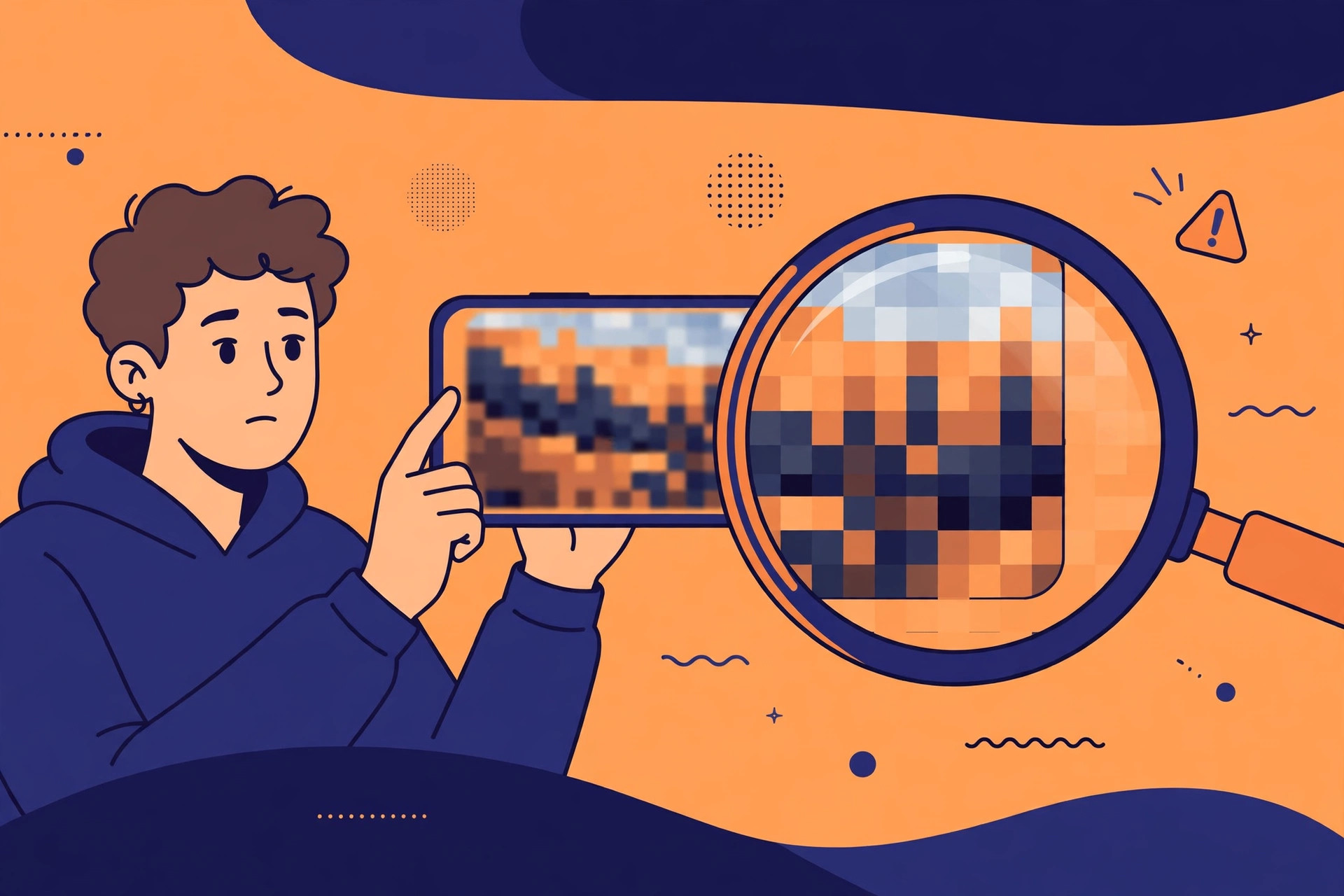
These issues rarely stem from a lack of design skill. More often, they are simple missteps in source image preparation, scaling, layout, and export choices. Here is a breakdown of the most common mobile meme-making pitfalls along with practical, step-by-step solutions.
1. Screenshots with Black Bars: Clean Them Up Before Uploading
A large portion of meme templates start as quick screenshots taken while watching movies, shows, or short videos on a phone. Because phone screen dimensions rarely match video aspect ratios, screenshots often carry letterboxing or pillarboxing (black bars on the sides, top, or bottom)—sometimes even capturing playback scrubbers and system status bars.
Common Mistake: Uploading a screenshot with black bars directly into an editor bakes those borders permanently into your meme canvas. This compresses the visible area of your subject and leaves top or bottom captions floating disconnectedly over empty black space.
How to Fix It:
- Pre-crop in your gallery app: Right after taking a screenshot, open your phone's native photo editor to crop tightly around the actual video frame. Strip away any black bars, notification icons, and player UI.
- Import into the editor: Tap "Upload Image" in the editor (or pick a clean template without black borders).
- Fine-tune the placement: If any faint dark edges remain after uploading, use the editor's scale and pan tools to zoom in slightly past the canvas edges, ensuring your visible canvas stays completely clean.
2. Why Does It Get Blurry? Source Resolution and Compression
"It looked fine in my gallery—why did it turn into a pixelated mess after I added text and exported it?" This is the single most common frustration when making memes on mobile devices.
The Cause: Memes undergo lossy compression every time they are shared across social and messaging platforms. If your source image is a heavily recycled thumbnail saved from a chat thread (often barely 100 to 200 pixels wide), it simply lacks underlying detail. Overlaying crisp typography onto a low-res base and exporting it forces the bottom layer to stretch and interpolate. Algorithms cannot synthesize missing details out of thin air, resulting in heavy artifacting and noise. Conversely, downsampling during export can leave text outlines frayed and fuzzy.
Best Practices:
- Find higher-resolution sources: Use original video stills or uncompressed source images whenever possible. In general, an image width between 600px and 1000px strikes a solid balance between clarity and swift loading speeds (note that platform-specific guidelines may vary over time; refer to your target platform's latest specs).
- Download as PNG: When saving your final meme, prioritize the PNG format over JPEG. PNG retains crisp, sharp text edges and prevents the muddy compression halos that frequently appear around lettering.
3. Aspect Ratio Mismatches: Frame the Shot Before Adding Text
Many creators instinctively type out both top and bottom captions before touching the background image, leading to a clumsy back-and-forth repositioning battle.
Common Mistake: Mobile screens offer limited working area. When your source image aspect ratio (such as 16:9 or 9:16) does not match your target meme canvas, typing captions first often covers crucial facial expressions, or forces you into awkward font scaling when you try to shift the image later.
The Right Workflow: Compose First, Add Text Second
- Scale and position your subject: After uploading, pinch and drag the image on the canvas. Anchor the primary subject (like a pet's eyes or a character's expression) inside the central visual zone, leaving clean negative space at the top or bottom.
- Add your text: Enable "Top Text" or "Bottom Text" as needed, inputting your punchline into the negative space you just preserved.
- Adjust font size and alignment: Scale the typography to fit the composition. Center alignment works best for short lines. For longer sentences, drop the font size down slightly so words do not press against the edges or get cut off.
4. Hard-to-Read Text? Use Classic Outlines and Check the Edges
Small phone screens can be deceiving. Captions that seem clear inside a full-screen editor can completely disappear into the background once shrunk down inside a messaging feed.
How to Fix It:
- Use classic text outlines (strokes): Plain, solid text easily gets lost against busy or multi-toned backgrounds. Applying a classic white font with a black outline (or black font with a white outline) creates a clear layer of separation between the text and the underlying image, keeping the text legible whether the background is bright or dark.
- Zoom In to Check the Edges: Before tapping download, pinch to zoom into the canvas preview area to inspect two key areas:
- Check whether the text edges and text strokes are crisp and sharp, without any blurriness;
- Make sure the text does not overlap the subject's facial features or the core action lines. If there is overlap, promptly fine-tune the line spacing or font size in the control panel.
Creating a clean, polished meme doesn't require complex design skills—the key lies in avoiding habits like "uploading with black borders," "forcing captions onto blurry thumbnails," and "insufficient text contrast."
To get started right away, you can upload your assets directly to meme.rapporteur.online, follow the steps above to adjust your typography, and export your own crisp meme.
Open the meme maker
Choose a template or upload your own image, add top and bottom text, and export a crisp PNG. Your image is processed in your browser.